This article explains how to invite team members within the Agency MVP application.
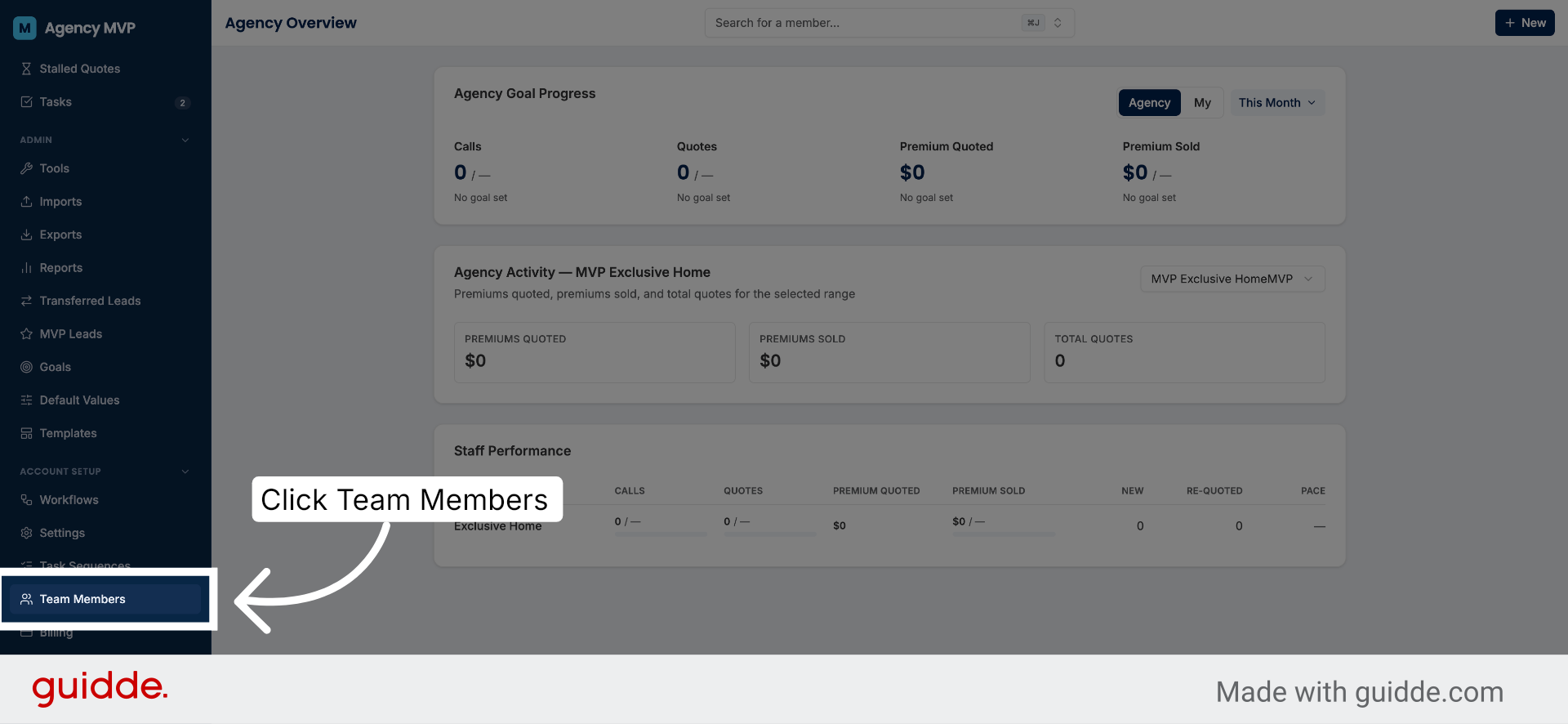
Navigate to Team Members Section
Click the Team Members tab to access the list of current team members and manage invitations.
2. Open Invite Team Member Form
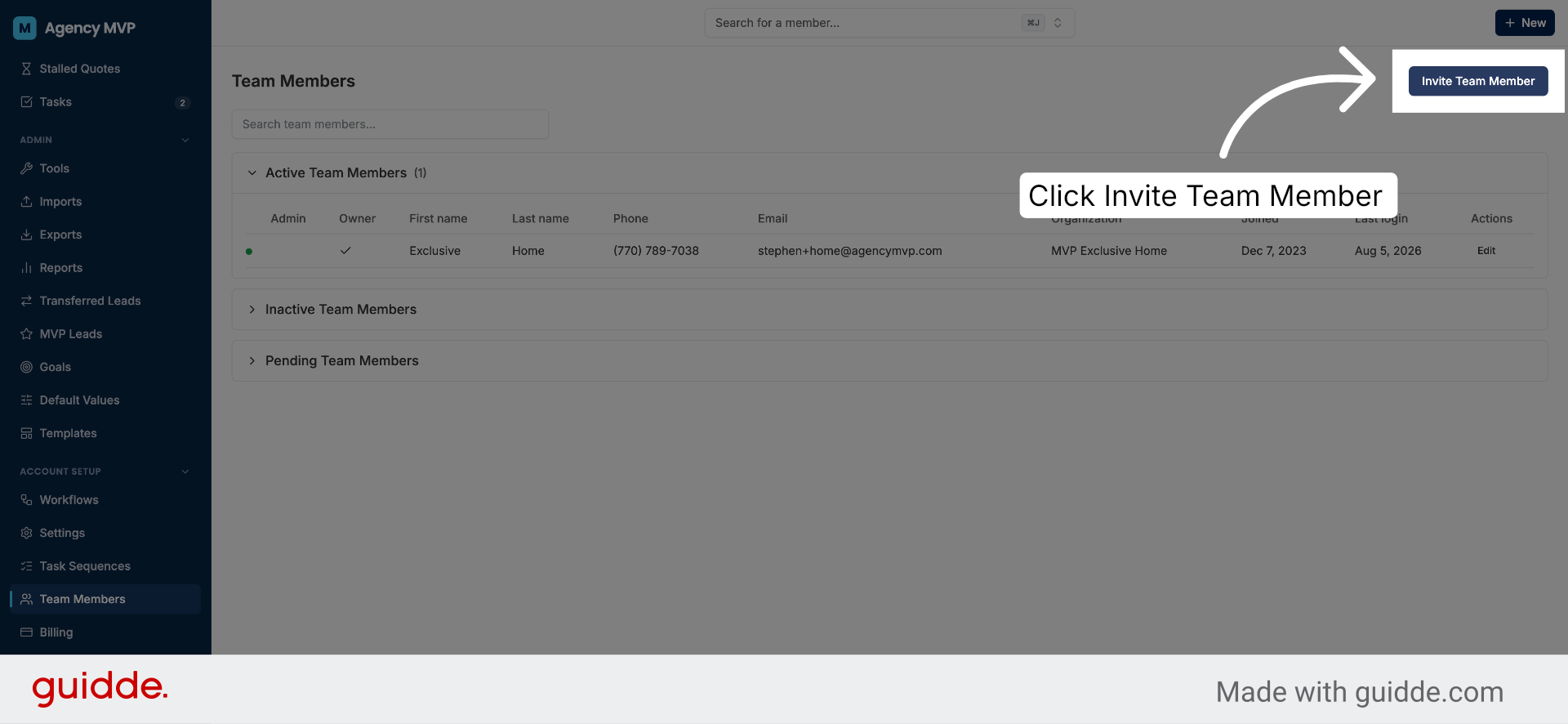
Click the Invite Team Member button to open the form for adding a new team member to your agency.
3. Enter Team Member's Information
Enter in First name, Last name, agency email address, agency phone number, and select their role.
* The Account Manager role will give this employee the same permissions/accessibility as the Agency Owner
* The Account Manager role will give this employee the same permissions/accessibility as the Agency Owner
Integrations
There are optional fields for PL Rater and QuoteBurst. These need to be left blank if you don’t use those services. If you do, adding the IDs here will allow for more seamless integration of those systems. See the specific guides for the rater that you use to learn more.
Free Game
If you would like to set up Free Game for this staff member, enter a number in the Free Game box. See the guide for Free Game to learn more.
4. Send Invitation to Team Member
Click the Send Invite button to send the invitation and add the new team member to your agency.
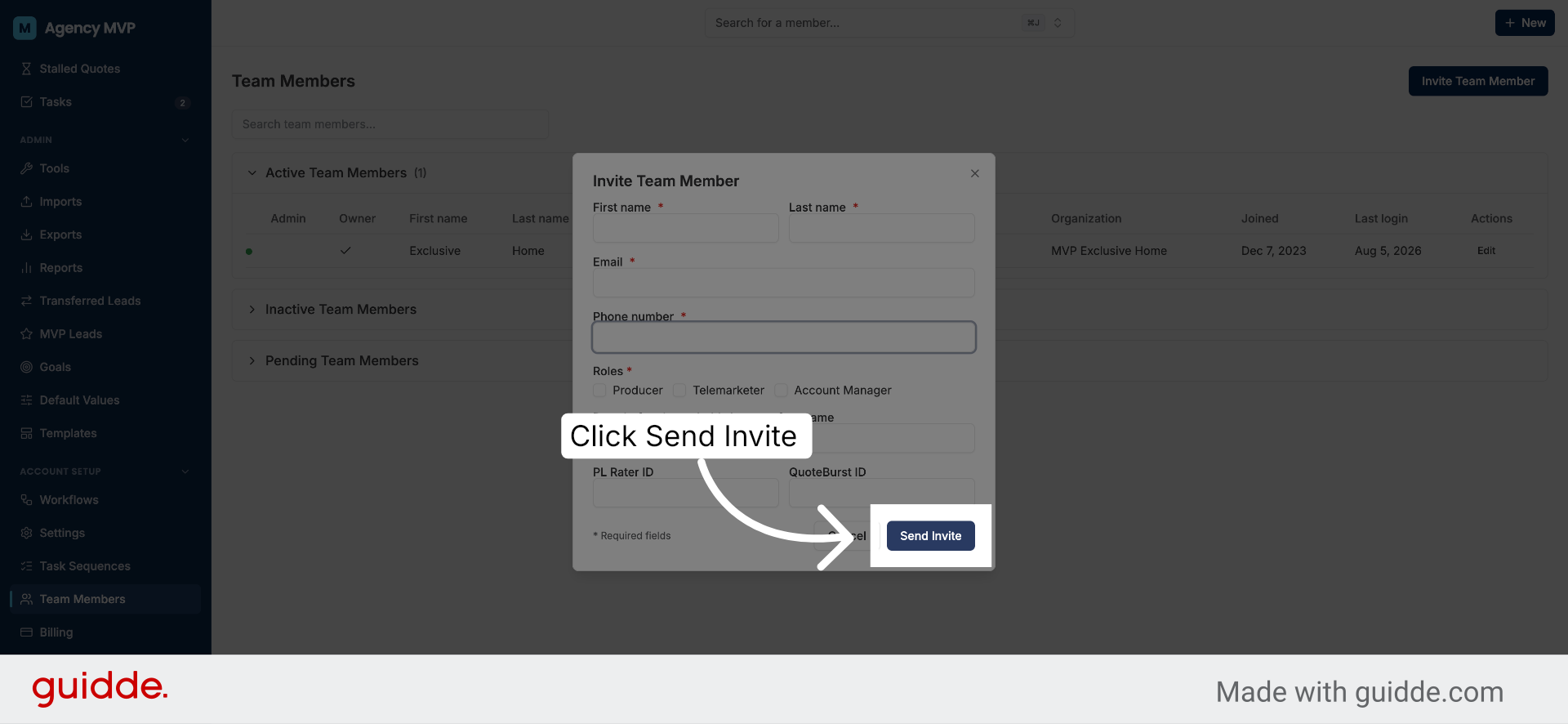
An invitation will be sent to the email address you entered for the user. In the email, your staff member will see a link to “Accept Invitation” which will take them to a screen where they can set their password. Once they do this, they will have access to MVP immediately.